


Hey, I’m RJ from Higher Foundations.
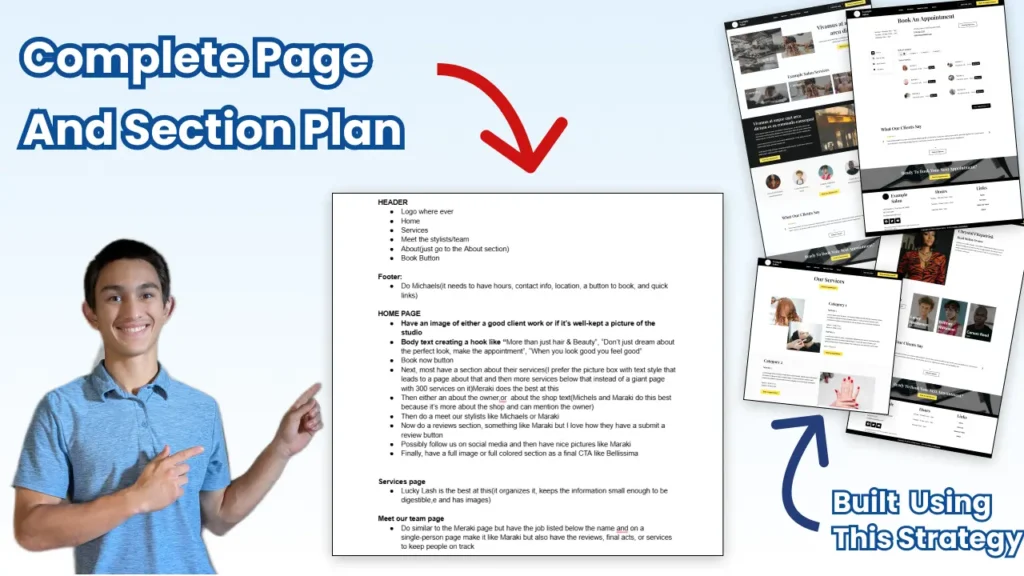
In this article, I’m going to break down the exact steps I use, with Google Docs and real websites, to map out a complete page and section list you’ll need before building a website.
Don’t waste HOURS guessing what website pages and sections you need. Use this process to help you build a clear layout before you even touch a design tool.
Let’s get into it.
1. Make a List of Good Website Examples
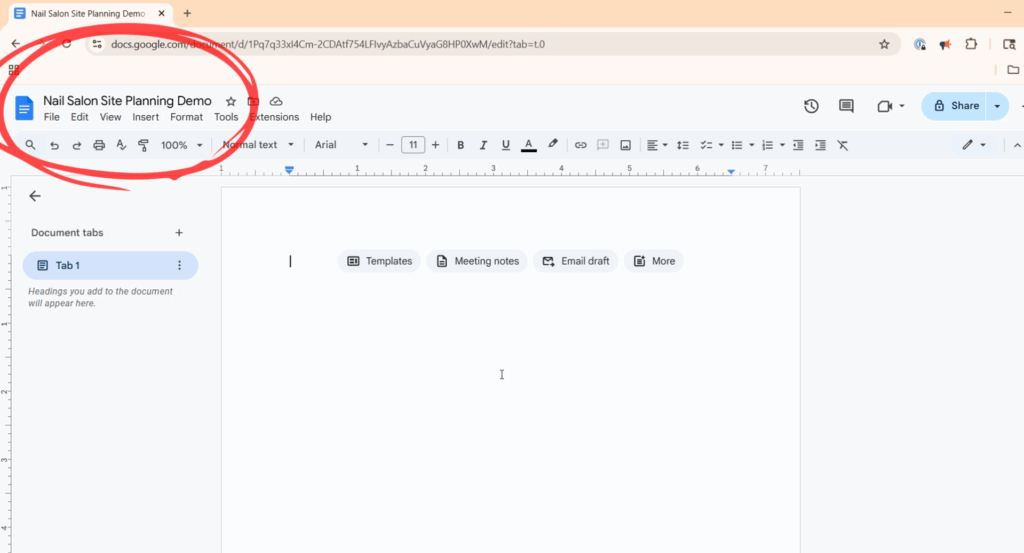
First, grab something to write on, Q-cards, a notebook, whatever. Personally, I’ll use a Google Doc, so I can access it anywhere.
Here’s what to do:
- Head to Google Maps.
- Search for a location you want to target. In this example, I used a random spot in Ohio called “Fairlawn, Ohio.”
- Click the “Nearby” button and type in your niche. I’m doing “nail salon.”
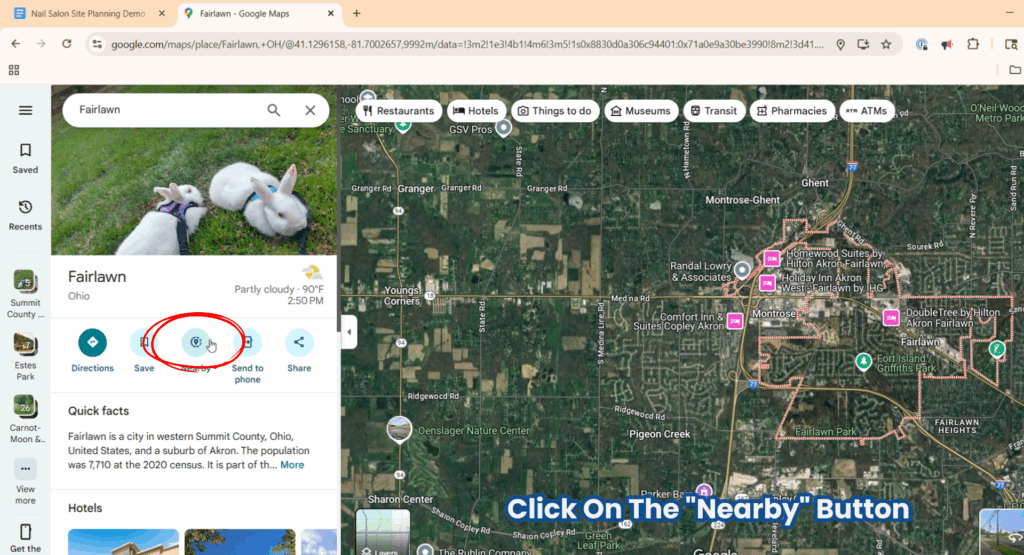
Google will give you a long list of businesses. Go through the list from top to bottom — nicer websites usually appear toward the top. Click each listing and try to find their actual website (you might have to do some digging). If you can’t find a site, move on to the next.
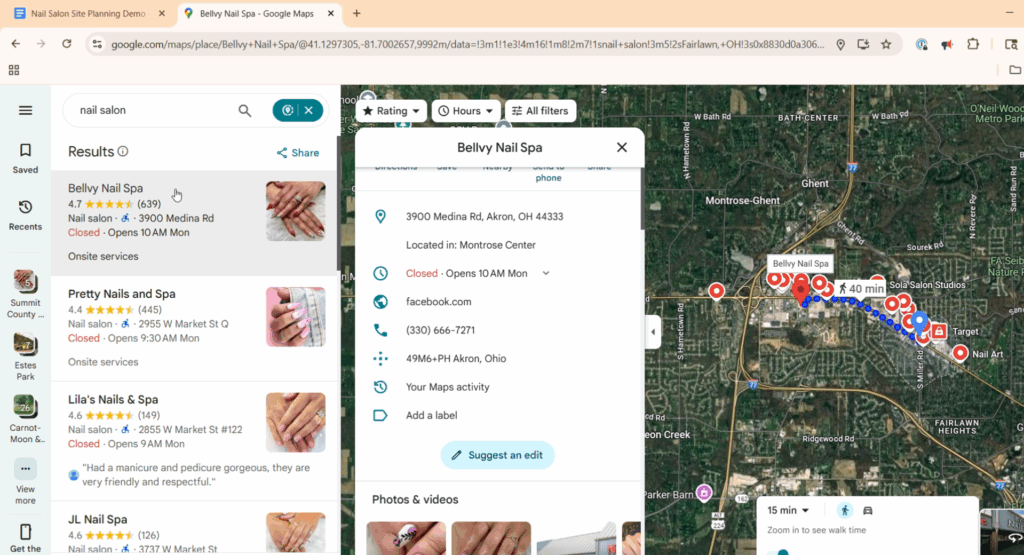
You’re looking for 3 to 5 sites that feel good. If a site looks clean, easy to use, or grabs your attention, that’s enough. You don’t need to be a designer, just trust your instincts. You’re a consumer too, and that’s what matters.
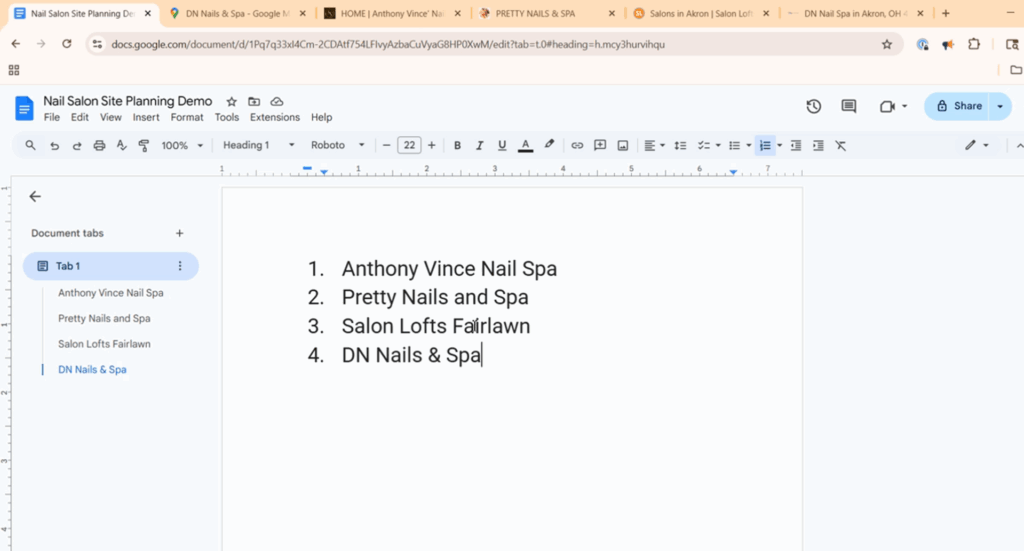
Once you’ve found your favorites, add their names and links to your Google Doc.
Step 2: Create a List of Pages
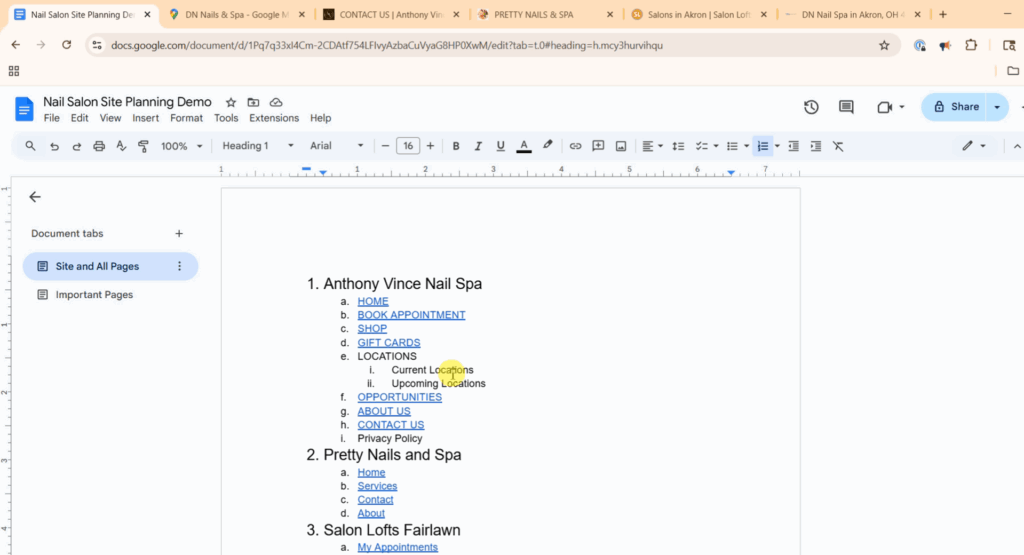
Now go through each of the sites you listed and write down all the pages they have. Don’t just stop at the top navigation, check for subpages too.
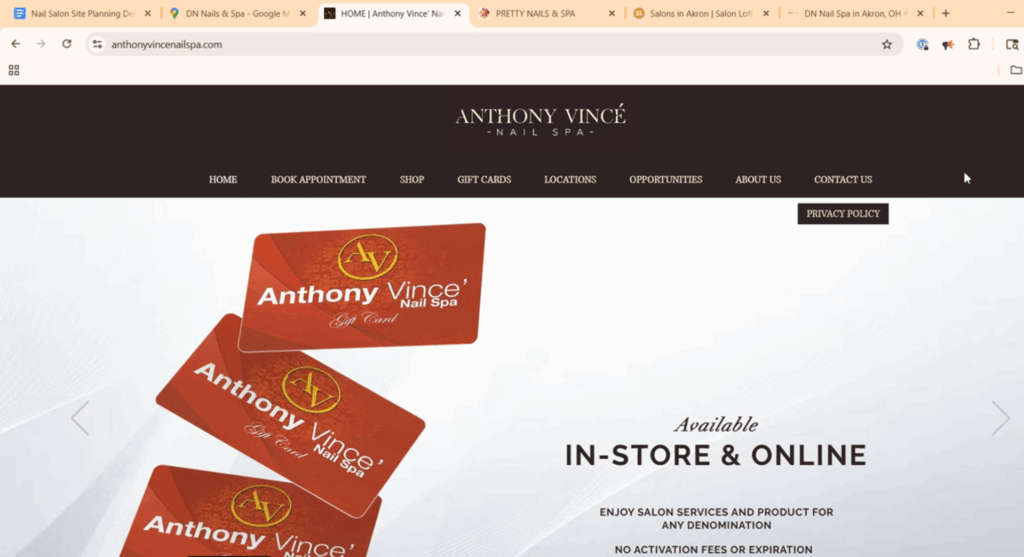
For example, one of the sites I looked at was Anthony Vince Nail Spa. I listed all the pages they had.
Once you do this for all 3–5 sites, look for overlap:
Which pages show up on every site?
Are there any that stand out as extra helpful to your website?
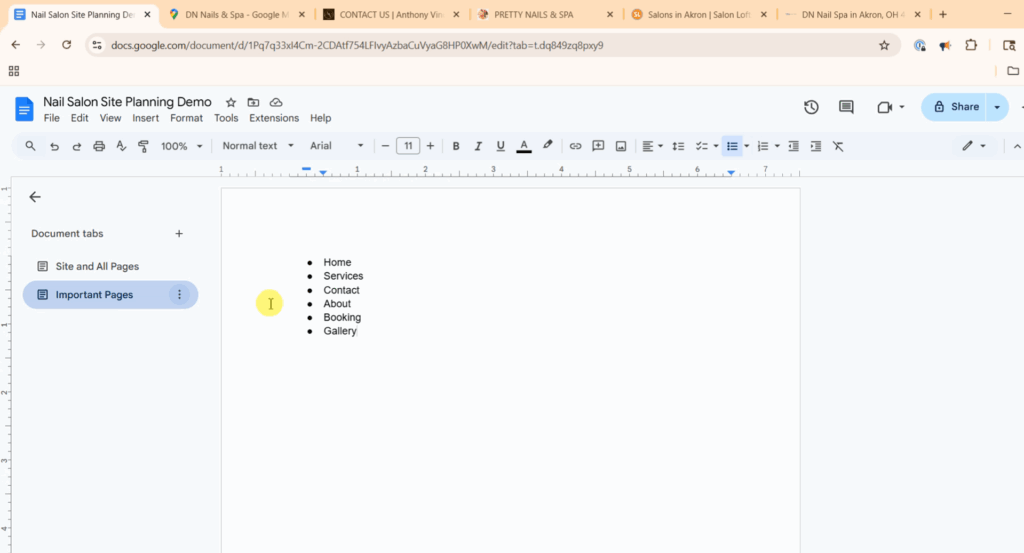
Of course, you’ll probably always see Home, About, and Contact pages. But since I’m doing a nail salon demo, I’ll also include a Services, Gallery, or Online Booking page, too.
Remember: Your list should reflect what your client or business needs. Just because another site has something doesn’t mean you need it, and vice versa.
Step 3: Add Sections to Each Page
At this point, you’ve got your list of pages. Now it’s time to figure out what sections go inside each page.
Here’s what to do:
Pick a page (like “Home”).
Go to that page on one of the sites (if some don’t have that page, just look at those that do)
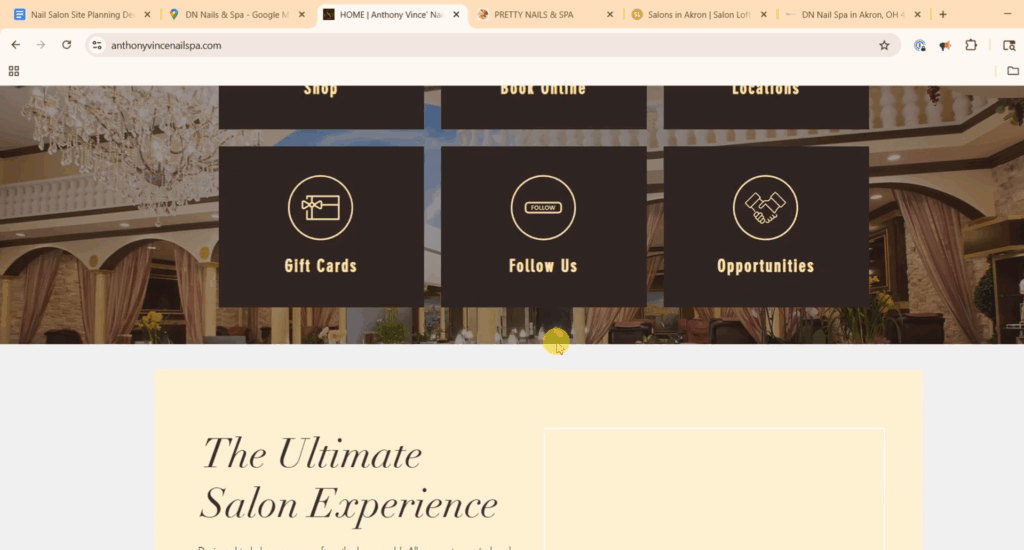
- Break the page down into sections: headline, services preview, testimonials, call-to-action, etc. Then write down all of the sections.
- Finally, repeat every step above for all of the pages on the page list.
- Once you’ve got your full list of sections per page, look for common patterns and favorites, just like you did with the pages themselves.
- Break the page down into sections: headline, services preview, testimonials, call-to-action, etc. Then write down all of the sections.
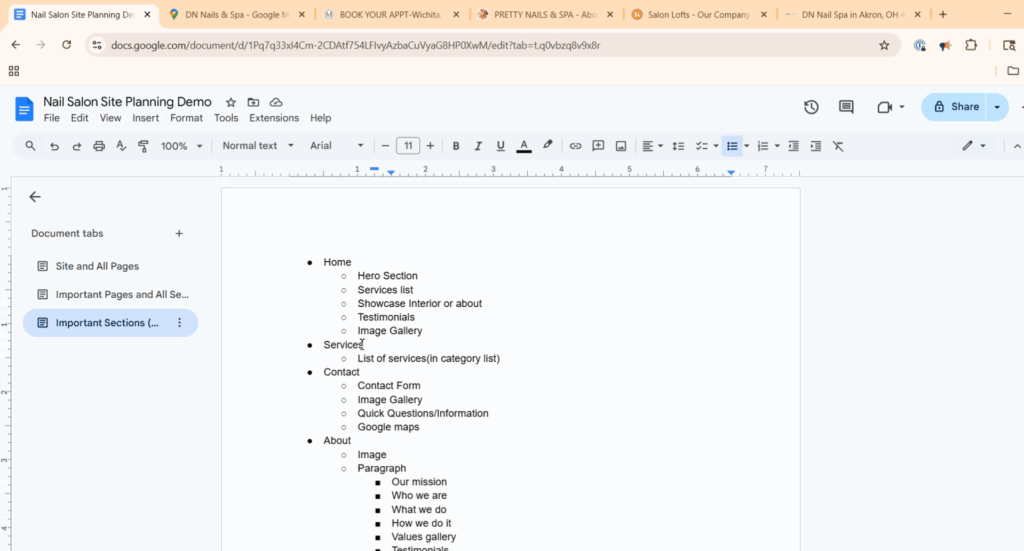
Step 4: Finalize the Page and Section List (Header, Footer, and Extras)
Now that you have your pages and sections, there’s just one more thing to do: list the miscellaneous elements like:
Header
Footer
Booking form (specific for my example)
Again, follow the same process in step 3 but for elements like these.
Pick an element (like “header”).
Find that element on one of the sites (if some don’t have the element, just look at those that do)
- Break the element down into parts: name/logo, menu, search feature. Then write down all of the sections.
- Finally, repeat every step above for all of the elements on the list.
- Once you’ve got your full list of parts per element, look for common patterns and favorites.
List of Elements for a Specific Site
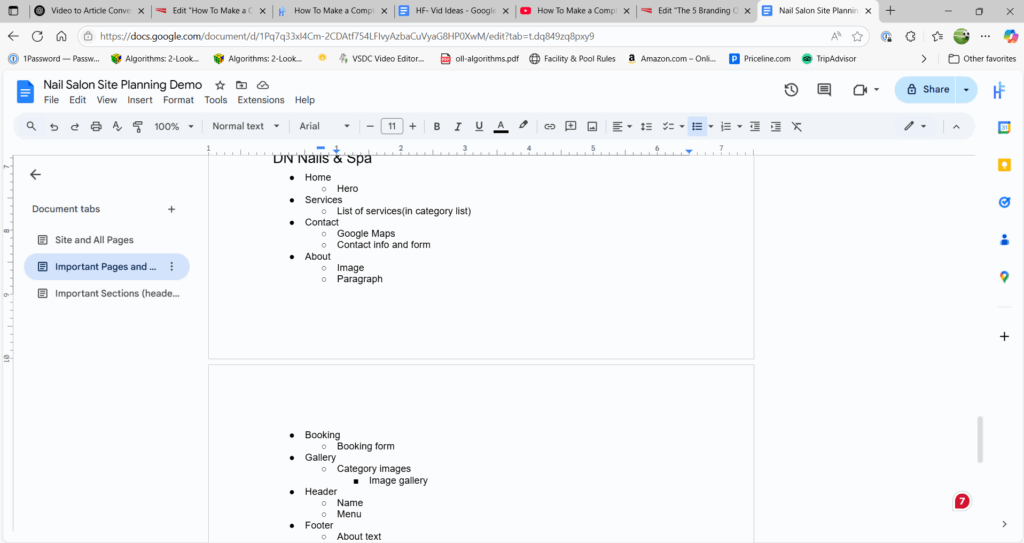
List of Common Patterns/Favorite Elements with the Page List from Step 3
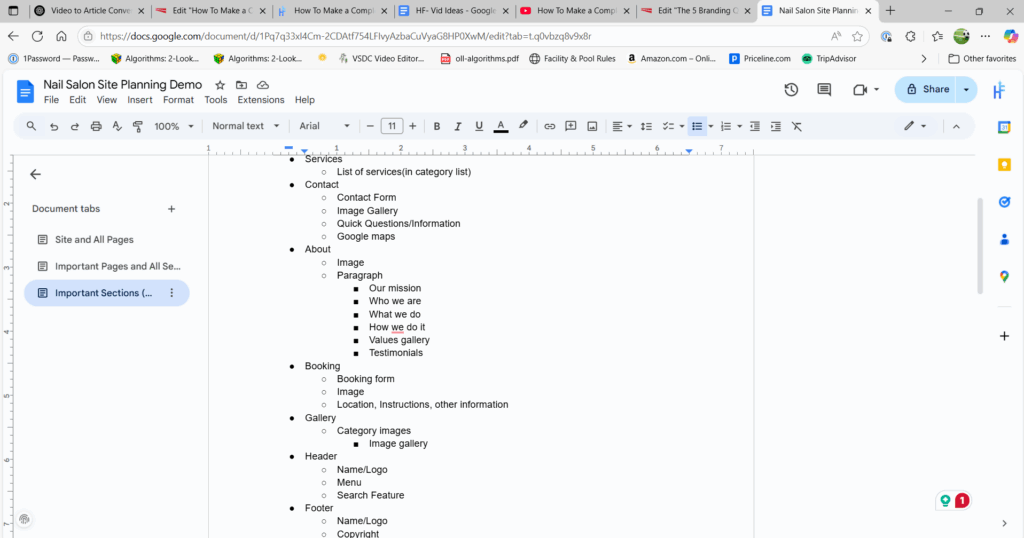
What You Have Now:
You now have a complete site layout; all planned inside your Google Doc:
✅ Every page your site should include
✅ What sections each page should have
✅ Header, footer, and global elements
✅ Real-world references to back up each decision
The next step? Turning this plan into a wireframe using Figma. You can’t build a website straight from a page and section list.
That’s what I go over in this video:
Need Some Help?
We’ve worked with over a dozen businesses to help them establish a professional and trustworthy online presence, and we’d love to help you too!